How do I reset the password?
- IP cameras — some IP cameras have a small flap on the underside of the chassis that hides an SD card slot and a microswitch (some models have the switch on the cable, or none at all). Holding the microswitch for 5 seconds while the camera is on resets it to factory defaults and restores the credentials to user "admin" and password "admin".
- NVR and XVR recorders and IP cameras without a reset microswitch — these devices store sensitive video and audio data, so they cannot be unlocked with a simple button or universal password. If you forget the admin password and the security questions and you didn't export the encryption key, the device must be sent to our technicians, who have special tools for unlocking. Such expert unlocking will, however, erase all recordings and return the device to factory defaults.
Password recovery — NVR and XVR recorders
On first login the user is prompted, for security reasons, to change the factory password. Changing the password also requires you to set security questions, export a key file and provide a contact email address.
- Security questions — a set of questions and answers only the authorised user can answer correctly
- Key file — a small file that, when uploaded to the recorder, unlocks the device and allows changing the password
- Email verification — using the BitVision app and a displayed QR code, a temporary password can be sent to the email address you set earlier.
Email verification
On the screen connected to the recorder or in the web interface, choose Password recovery in the login window.
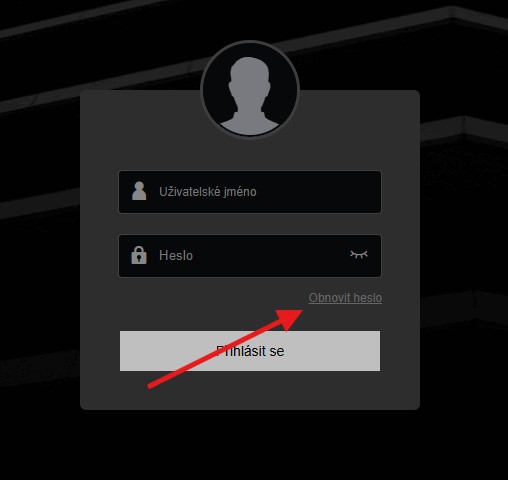
Choose email verification. A QR code will be displayed (if this option is not active, the recovery email was not set when changing the factory password — try other recovery methods, or send the device to us as described below).
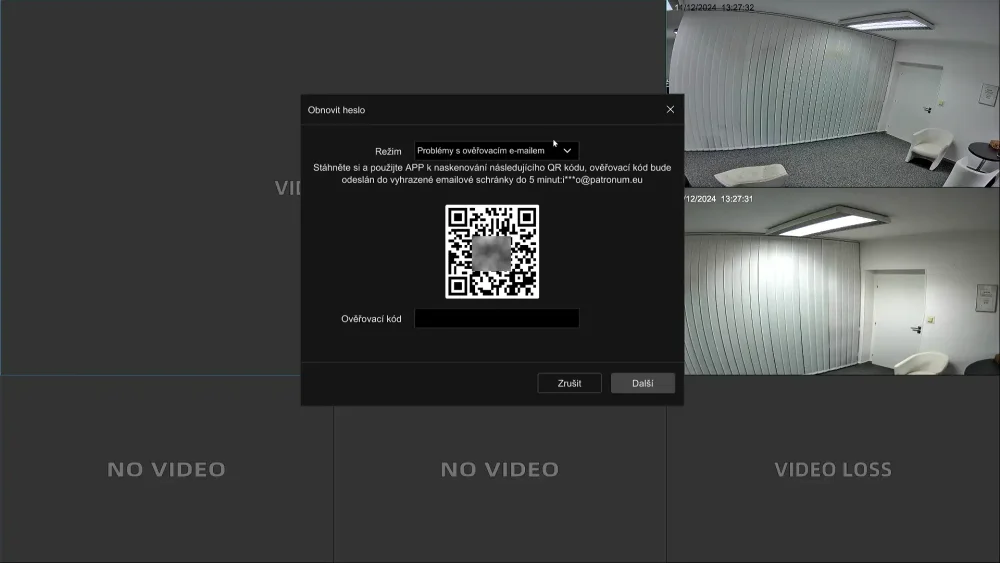
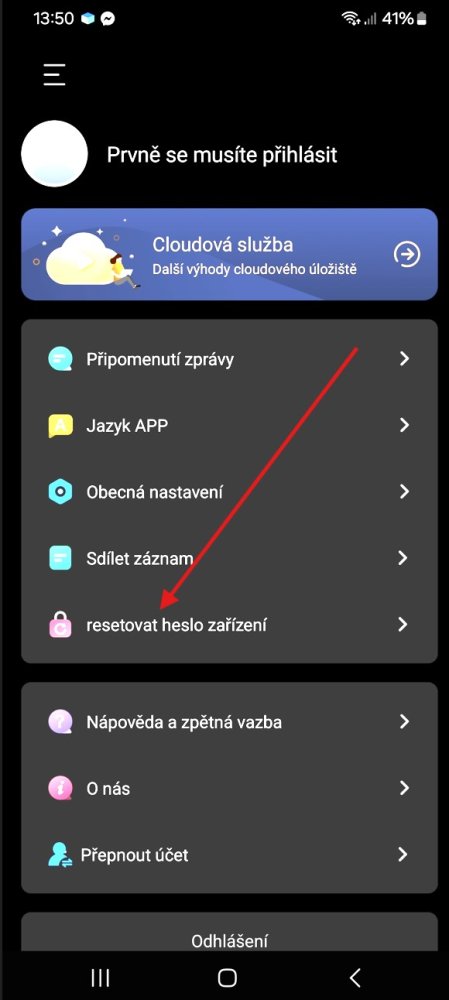
Open the BitVision app on your phone and tap the account icon at the top of the main menu (or the email you're registered with) and choose "Reset device password". In the next step photograph the QR code displayed on the recorder. A code will be sent to the email address you set; enter it in the "Verification code" field on the recorder.
I don't know the recovery details
If recovery cannot be done for any reason, there's one last option — sending the recorder to us for unlocking and a factory reset. Because of the complexity, this is a paid service. The whole process takes around 3 working days plus shipping time.
You can order this service and pay via our e-shop. We'll send further instructions by email after processing your order.