How do I configure the device
For this to work the device must be connected to the internet, have a Google account and free space on Google Drive, and have storage on motion detection enabled.
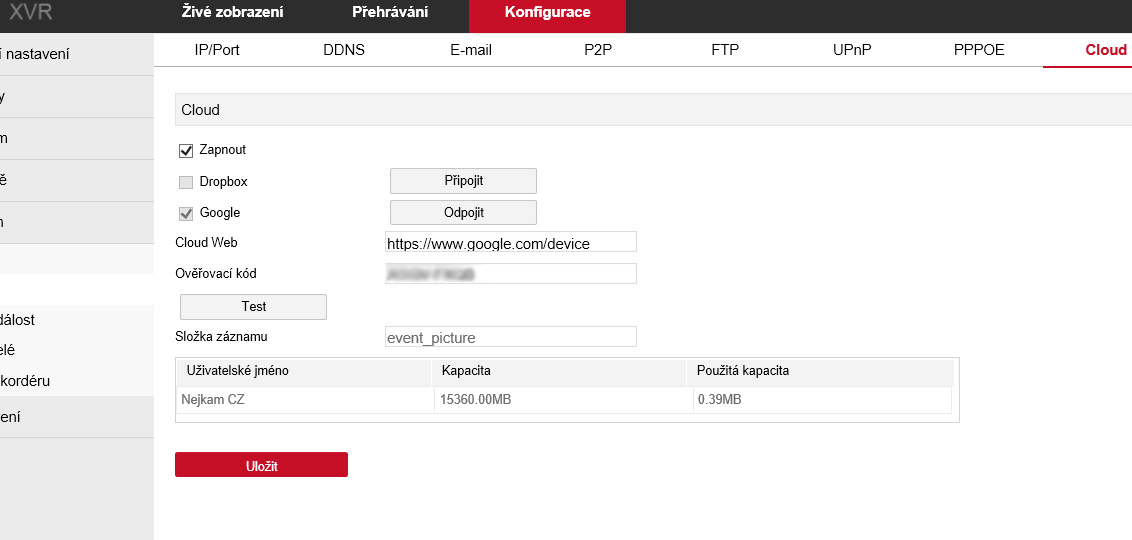
- Sign in to the configuration interface and go to the relevant CLOUD setting.
- Tick "Enable" for cloud storage.
- Tick "Google" or "Dropbox".
- Copy the address from the "Cloud web" line and paste it into a browser on your PC.
- When prompted, enter the "Verification code" and confirm linking the device with Google Drive.
- Click "Connect".
- The device pairs with the cloud storage and reports the available capacity.
- A folder is created for storing images (default name "event_picture").
After signing in to Google Drive or Dropbox you'll see the individual event images.
